


Can Two SSL Connex USB Microphones Deliver Better Audio for Teams Meetings? [ Answered!]
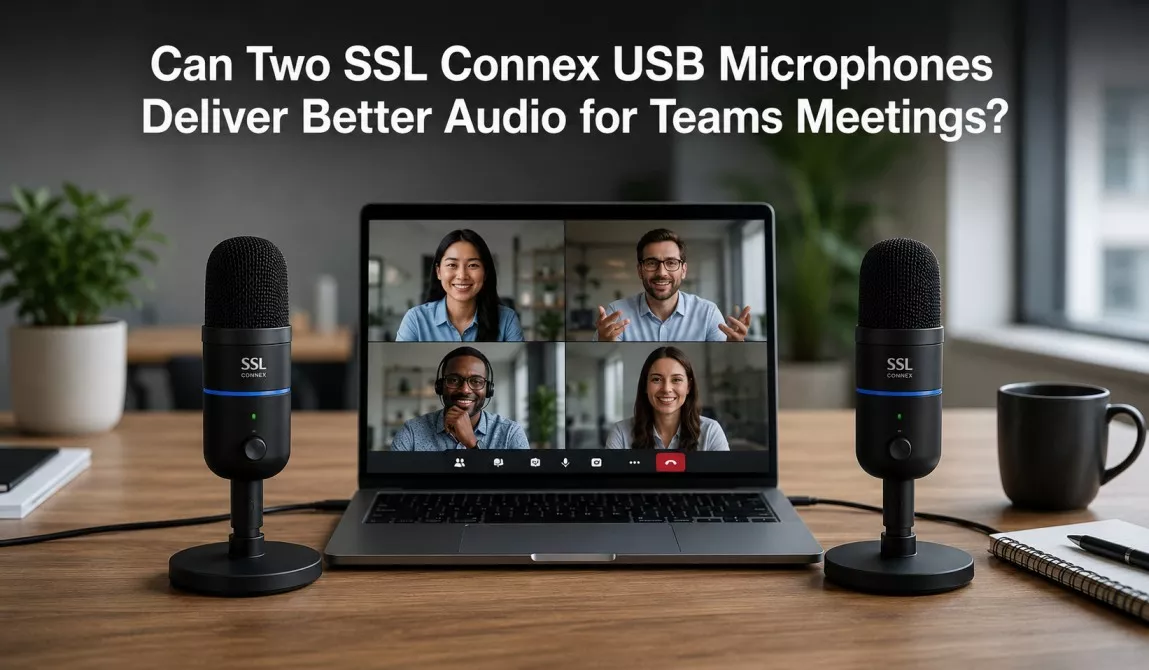
Yes, but only with the right setup. Two SSL Connex microphones can extend coverage in a larger room and reduce the “far from the mic” problem. However, Microsoft Teams won’t combine them on its own. First, you need to merge the two inputs into a single virtual device — through macOS Aggregate Device routing, a Windows virtual mixer, or dedicated audio software. Otherwise, Teams will simply ignore the second microphone. When you set it up correctly, dual Connex units work well in mid-size rooms. But when you set it up carelessly, they introduce echo, phase cancellation, and inconsistent levels.
In video meetings, people forgive a frozen frame far more easily than they forgive audio that cuts out, echoes, or sounds muffled. In fact, voice carries the meaning, while video is mostly context. That’s why so many remote and hybrid teams chase better microphones before they chase better webcams.
The SSL Connex has become a popular upgrade pick because it brings Solid State Logic’s studio pedigree to a desktop USB mic. So, when a room feels too big for one Connex, the obvious next question is whether buying a second one — instead of a different product entirely — is the smarter move. This article therefore walks through exactly how Teams handles microphone input, what happens when you connect two Connex units, and when a dual-mic setup is genuinely worth the effort.
What Is the SSL Connex USB Microphone?
Solid State Logic built SSL CONNEX around a four-capsule quad microphone array to handle speech, vocals, and instruments for meetings, streaming, and recording. The company brings decades of experience building consoles and processing gear for professional studios and broadcast to this portable USB-C microphone, and as a result, that pedigree shows up in the Connex’s onboard signal processing.
Specifically, the key features include:
- Quad microphone array — four capsules instead of one or two, which is what allows the mic to adapt its pickup pattern depending on the mode you select.
- Four DSP user modes — Solo for individual use on calls or streams, Group for round-table discussions, Vocal for singing or narration, and Music for louder instrumental sources.
- Automatic smart mixer — it balances levels automatically so every voice in the room comes through clearly.
- Studio-grade DSP — SSL builds the processing on its own EQ and dynamics algorithms, drawn from its professional studio and broadcast products.
- USB-C connectivity — a class-compliant USB-C connector compatible with a wide range of computers and tablets, with no drivers required.
- Headphone monitoring and loopback — a 3.5 mm output with zero-latency monitoring and an ambient loopback option.
- Touch controls — including mute, push-to-talk, and a cough switch, with a backlit RGB logo that indicates mute state and which mode is active.
In Group mode, the Connex’s quad microphone array and automatic smart mixer work together: they keep every presenter around the table clear and cut unwanted background noise — exactly what you’d want for a conference room. As a result, this single-unit design covers a small huddle room comfortably. But the real question is what happens when the room — or the table — gets bigger.
How Microsoft Teams Handles Audio Inputs
This is the part most people skip, and it’s the reason a second microphone doesn’t automatically make Teams sound better.
Microsoft Teams works with only one audio input device at a time. In Settings → Devices, you choose a single microphone from a dropdown list, and whatever device you select there is the only one Teams listens to during a call. In other words, there’s no native option to select two microphones and have Teams blend them.
A few consequences follow from that:
- Plugging in a second Connex doesn’t add a second input. Windows or macOS simply lists it as another available device in the dropdown, and Teams uses whichever one you select, not both.
- Switching the dropdown mid-call moves between mics; it doesn’t combine them. You’d be alternating coverage, not extending it.
- Teams applies its own noise suppression and echo cancellation on top of whatever signal it receives. That processing assumes a single, consistent input, so feeding it two unsynchronized sources — if you found a workaround — can confuse its echo cancellation, especially when using speakers instead of headphones.
In short, Teams doesn’t do the work of combining two microphones. Instead, if you want two Connex units to act as one room microphone, that combining step has to happen before the audio ever reaches Teams — at the operating system or driver level.
Can You Use Two SSL Connex USB Microphones Simultaneously?
Technically, yes — you can plug in and power both at once. However, whether they actually function together depends entirely on your operating system and whether you add routing software.
Windows
Windows doesn’t have a built-in way to merge two separate USB audio input devices into a single combined input. Each Connex shows up as its own device, and standard apps — Teams included — can only select one device at a time from the system or in-app dropdown. So, to use both mics as one source on Windows, you need third-party virtual audio routing software, which we cover below. Without it, the second Connex sits effectively idle during a Teams call.
macOS
macOS has a built-in advantage here: Audio MIDI Setup. You’ll find it in Applications → Utilities, and it includes a “Create Aggregate Device” feature that can combine multiple USB audio devices into one. As a result, this lets two Connex units appear to the system as a single multi-channel device.
There’s a catch, though — an Aggregate Device combines the channels from both mics; it doesn’t automatically mix them down into one balanced mono or stereo feed. Teams reads the combined device but typically only picks up the default channel pair, not a true blend of both microphones, unless you add a mixing layer on top, such as Rogue Amoeba’s Loopback.
Virtual Audio Routing Software
This is the real solution on either platform. Tools like Voicemeeter (Windows) or Loopback (macOS) let you route two physical microphone inputs into one virtual microphone device, with actual level mixing rather than just channel stacking. You then select that virtual device inside Teams. In fact, this is the only reliable way to make “two Connex mics” behave like “one room mic” from Teams’ point of view.
Hardware Considerations
Because the Connex is USB-only, with no analog or XLR output, you can’t run two units into a traditional analog mixer the way you would with XLR microphones. So, all combining has to happen in software — which also means both microphones run on independent internal clocks. In other words, they don’t share a synchronized clock the way professional, word-clock-locked equipment would. As the next section explains, that detail matters more than it sounds.
Does Using Two SSL Connex Microphones Actually Improve Teams Audio?
Potential Benefits
- Larger room coverage. Place two units at opposite ends of a long table, and you close the distance between each speaker and a microphone.
- Better voice pickup for far-seated participants. Anyone sitting more than a few feet from a single mic tends to sound thin or distant, but a second unit fixes that for their side of the room.
- Flexible room layouts. U-shaped, L-shaped, or split-table arrangements are easier to cover with two strategically placed mics than one centrally placed one.
- More forgiving for larger groups. Each Connex’s Group mode and smart mixer have a practical pickup radius, so splitting a bigger group across two units keeps everyone within that radius.
Potential Drawbacks
- Phase cancellation. When two independent microphones pick up the same voice from different distances, the sound waves can arrive slightly out of alignment, partially canceling each other out. The result is a thin, “hollow” or “swooshy” quality — distinct from an echo, and harder to diagnose.
- Clock drift. Since the two Connex units don’t share a synchronized clock, their audio streams can drift relative to each other over a long call, which subtly worsens phase issues over time.
- Echo with speakers. If the room uses speakers rather than headphones, both mics may pick up the speaker output. Teams tunes its echo cancellation for a single input, so splitting that input across two unsynchronized mics can leave residual echo that wasn’t there with one mic.
- Configuration overhead. Aggregate devices, virtual mixers, and channel routing are not “plug and play.” Getting them right takes setup time and, often, troubleshooting.
- USB conflicts on shared hubs. Two USB audio devices on the same hub or controller can occasionally cause driver hiccups, particularly on laptops with limited USB bandwidth allocation, so use separate ports where possible.
One vs. Two SSL Connex Microphones
| Factor | One SSL Connex | Two SSL Connex (aggregated) |
|---|---|---|
| Setup complexity | Plug and play | Requires virtual audio routing |
| Best room size | Small huddle room (2–5 people) | Medium conference room (6–10 people) |
| Risk of echo/phase issues | Low | Moderate, if mics are placed too close together |
| Native Teams support | Full (single input) | None — needs OS/software aggregation |
| Cost | ~$150–$199 | ~$300–$400 plus optional software |
| Coverage flexibility | Centered pickup only | Split coverage across the table |
Real-World Scenarios
Small Meeting Room (2–4 people)
Center one Connex in Group mode on the table, and that’s almost always enough. The quad array and smart mixer already cover this range comfortably, so adding a second unit only introduces complexity without a real audio benefit.
Medium Conference Room (5–10 people)
This is where dual microphones can genuinely help — particularly with a long table or an L-shaped layout, where a single mic at the center would leave people at the far end sounding distant. Place two Connex units at each end of the table, aggregate them through Voicemeeter or Loopback, and they’ll close that gap. So, this is also the range where the setup effort starts to pay off.
Large Boardroom (10+ people)
At this size, even good consumer USB mics start to strain. The phase and synchronization issues we covered above become more noticeable as you add more voices and more distance. For that reason, dedicated conferencing hardware — ceiling mic arrays, certified Teams Rooms systems — is usually the better investment, since manufacturers purpose-build it with synchronized, multi-element mic arrays and professional echo cancellation across the whole room.
Room-Size Recommendation Table
| Room Size | Participants | Recommended Setup |
|---|---|---|
| Small huddle room | 2–4 | One SSL Connex (Group mode) |
| Medium conference room | 5–10 | Two SSL Connex (aggregated) or one ceiling mic |
| Large boardroom | 10+ | Dedicated Teams Rooms / ceiling mic array |
Best Ways to Connect Two SSL Connex Microphones
Here’s how to set it up, step by step:
- Plug in both Connex units, ideally into separate USB controllers (not the same hub) to avoid bandwidth conflicts.
- On macOS: Open Audio MIDI Setup → click “+” → Create Aggregate Device → check both Connex units.
- On Windows: Install a virtual audio mixer such as Voicemeeter, and route both Connex inputs into its virtual input strip.
- Mix the levels in your routing software so neither mic dominates, and apply any available delay compensation to reduce phase issues.
- Set the virtual device (not either physical Connex) as the input in your routing software’s output, then select that virtual device inside Teams.
- Test with a real call — preferably recording yourself — before relying on the setup for an actual meeting.
Teams Setup Checklist
- Connect and power both Connex units (check for a steady LED)
- Create and configure the aggregate device or virtual mixer
- Balance levels between both mic inputs
- Select the virtual/combined device in Teams → Settings → Devices
- Complete a test call with a participant on the far end of the room
- Use headphones or directional speakers to minimize feedback risk
Alternative Solutions
Of course, two Connex units aren’t the only option. Here’s how they compare to other approaches:
| Solution | Best For | Pros | Cons |
|---|---|---|---|
| Single SSL Connex | Small rooms, 1-on-1 calls | Simple, affordable, great voice quality | Limited range for large rooms |
| Two SSL Connex (aggregated) | Medium rooms, tight budgets | Extends coverage, flexible placement | Setup complexity, phase risk |
| Dedicated conference speakerphone | Small-medium rooms | Built-in echo cancellation, one-box simplicity | Less premium sound than Connex |
| Ceiling microphone array | Medium-large rooms | Synchronized, room-wide pickup, no desk clutter | Higher cost, installation required |
| Certified Teams Rooms system | Large boardrooms | Purpose-built for Teams, professional AEC | Highest cost, dedicated hardware |
Expert Recommendation
Ultimately, the right choice comes down to four factors: room size, participant count, budget, and how comfortable your team is with audio configuration.
- Small room, tight budget, no patience for setup: one Connex.
- Medium room, willing to spend an hour configuring software: two Connex units, aggregated.
- Medium room, want zero configuration: a single dedicated conferencing speakerphone instead.
- Large boardroom, recurring high-stakes meetings: invest in a ceiling array or certified Teams Rooms hardware rather than stacking consumer USB mics.
Troubleshooting Common Issues
- Hollow or “underwater” voice quality: Likely phase cancellation. Move the mics farther apart or angle them so they’re not both facing the same speaker head-on.
- Echo on the remote end: Switch to headphones, or move speakers farther from both microphones.
- Teams only picks up one mic: Confirm that you’ve selected the aggregated/virtual device — not either individual Connex — in Teams’ device settings.
- One mic noticeably louder than the other: Rebalance levels in your routing software; the Connex’s onboard smart mixer only balances voices within its own pickup, not between two separate units.
- Crackling or dropouts: Move one Connex to a different USB controller or port, since shared hub bandwidth can cause this with two active USB audio devices.
Final Verdict
Two SSL Connex microphones can improve Teams meeting audio — but only in medium-sized rooms, and only after you route both inputs through an aggregate device or virtual mixer. For small rooms, one Connex is simpler and just as effective. For large boardrooms, dedicated conferencing hardware will outperform any stacked consumer-mic setup. Overall, the dual-Connex approach occupies a specific middle ground: bigger than a huddle room, not big enough to justify a full room system.
Frequently Asked Questions
Can Microsoft Teams use two microphones at the same time? Not natively. Teams selects one input device from its settings menu, so to use two microphones together, you need to combine them into a single virtual device first.
Does Windows support multiple USB microphones? Windows can connect and recognize multiple USB microphones, but it won’t merge them into one input on its own. Instead, you need virtual audio routing software like Voicemeeter to combine them.
Is SSL Connex suitable for conference rooms? Yes, particularly for small to medium rooms. Its Group mode specifically targets round-table conference calls, using the quad microphone array and automatic smart mixer to keep multiple presenters clear.
Will two microphones create echo? Not necessarily, but the risk is higher than with a single mic — especially if you’re using speakers instead of headphones, since both mics can pick up speaker output and confuse Teams’ echo cancellation.
Can macOS combine two USB microphones? Yes, through the built-in Audio MIDI Setup utility’s Aggregate Device feature, though you may need additional mixing software to properly blend the two signals rather than just stack their channels.
Do I need audio mixing software? For a true dual-mic setup, yes. Without it, Teams uses only one of your two Connex units at a time.
What’s the best room size for SSL Connex? A single Connex covers small rooms comfortably, roughly 2–5 people around a table. Once you aggregate two units properly, though, they extend that to medium conference rooms of 6–10 people.
Is a dual-microphone setup worth the effort? For medium rooms on a budget, yes. For small rooms, it’s unnecessary complexity. For large boardrooms, dedicated conferencing hardware is usually the better investment instead.
Conclusion
So, here’s the definitive answer: two SSL Connex microphones can deliver better Teams audio, but only when you pair them with proper audio routing — Teams will never combine them on its own. For a small huddle room, stick with one Connex; it’s simpler and already well-suited to the job. For a medium conference room with a long table or awkward layout, two Connex units, once aggregated, make a genuinely cost-effective upgrade over a single mic. For a large boardroom, however, your money is better spent on dedicated conferencing hardware built for room-wide, synchronized pickup.
Practical takeaway: match the setup to the room, not the other way around — and if you do go the dual-mic route, budget time for the software configuration, not just the hardware purchase.


