

How to Get Effects on Google Duo (2026 Guide)
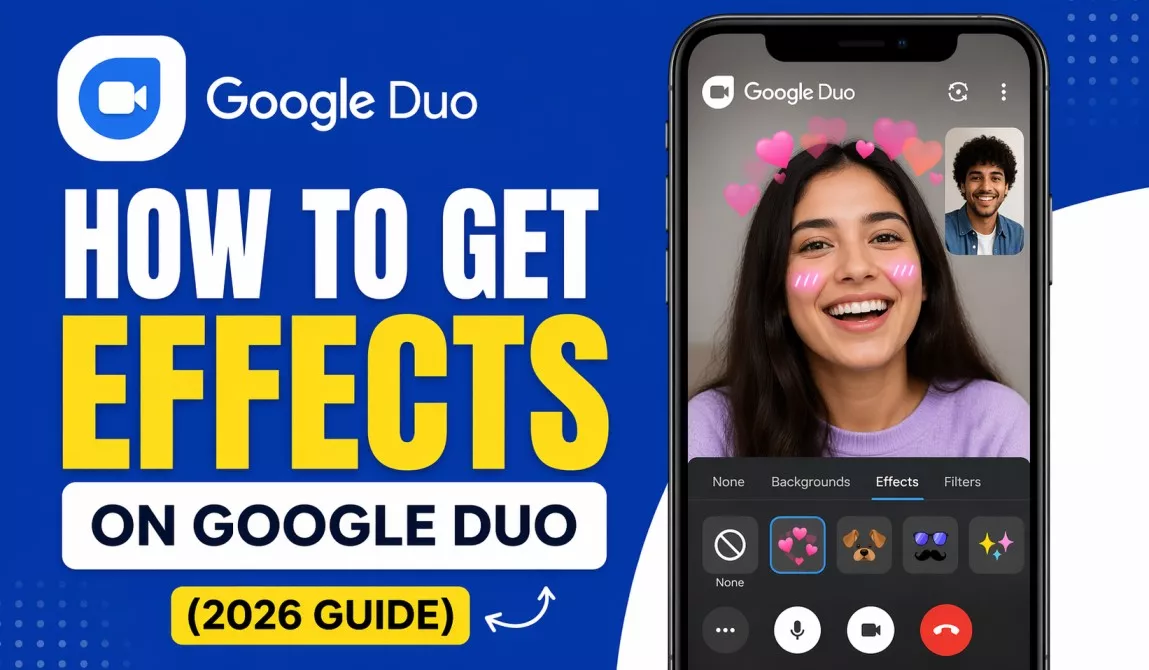
To get effects on Google Duo (now fully rebranded as Google Meet), open the app, start or join a video call, tap the sparkle or effects icon on your screen, and choose from filters, backgrounds, or AR effects. As of 2026, Google Duo no longer exists as a standalone app — it was completely merged into Google Meet in 2023. All effects, filters, and visual enhancements that were available on Duo are now accessible through Google Meet on both Android and iOS devices, as well as on desktop browsers.
What Happened to Google Duo? (Important Update for 2026)
If you have been searching for effects on Google Duo, the first thing you need to know is that Google Duo was officially retired and merged into Google Meet in late 2023. Google made this decision to consolidate its video calling services into one unified platform.
What this means for you:
- The Google Duo app now redirects to Google Meet when you open it.
- All your contacts, call history, and settings were automatically migrated.
- Every visual effect, AR filter, and background feature from Duo is now available in Google Meet.
- The Google Meet app is free to download on Android (Google Play Store) and iOS (Apple App Store).
So when people in 2026 search for “effects on Google Duo,” they are essentially looking for effects on Google Meet. This guide covers everything you need to know about using those effects in the current app.
Why Use Effects on Google Calls?
Visual effects are not just for fun. They serve real, practical purposes in daily and professional video calls. Here is why millions of users use them:
- Privacy: Background blur hides your messy room or private environment.
- Professionalism: Virtual backgrounds make home offices look polished for work meetings.
- Fun: AR filters and animated effects make personal calls more engaging and entertaining.
- Accessibility: Lighting enhancement effects help users in poorly lit environments look clearer.
- Focus: Effects help reduce visual distractions for the person on the other end of the call.
According to a 2025 report by Statista, over 3 billion video calls are made daily across all platforms globally. Google Meet alone serves more than 100 million daily active users. Among those users, approximately 62% regularly use at least one visual effect or background customization during their calls.
Types of Effects Available on Google Meet (Previously Google Duo) in 2026
Before jumping into the steps, it helps to understand the different categories of effects available to you.
| Category | What It Does | Available On |
|---|---|---|
| Background Blur | Softly or fully blurs your background | Android, iOS, Desktop |
| Virtual Backgrounds | Replaces your background with images or videos | Android, iOS, Desktop |
| AR Filters | Adds animated effects to your face and surroundings | Android, iOS |
| Lighting Adjustments | Improves low-light visibility automatically | Android, iOS, Desktop |
| Style Filters | Applies color grading filters over your video | Android, iOS |
| Classroom/Work Frames | Adds professional or themed borders to your video | Android, iOS, Desktop |
| Emoji & Animated Reactions | Displays emoji animations on screen during calls | Android, iOS, Desktop |
How to Get Effects on Google Meet on Android (Step-by-Step)
This is the most common way users access effects since Google Meet is primarily a mobile app for casual calling.
Step 1 — Download or Update Google Meet
Open the Google Play Store on your Android device. Search for “Google Meet.” If you have the old Google Duo app installed, it will already be redirecting to Google Meet. Make sure your app is updated to the latest version (version 240 or later as of early 2026). Tap Install or Update.
Step 2 — Open a Video Call
Launch Google Meet. Tap “New Call” to start a new video call, or tap on a contact to call them directly. You can also join an existing meeting using a meeting code or link.
Step 3 — Access the Effects Panel
Once your video call screen is active, look at the bottom or top of your screen for the sparkle icon (it looks like three stars) or the wand icon. Tap on it. This opens the Effects panel. On some Android versions, you may need to tap the three-dot menu first and then select “Effects.”
Step 4 — Choose Your Effect Type
Inside the Effects panel, you will see several tabs: Backgrounds, Filters, and in some regions, AR effects. Tap the tab you want to explore.
Step 5 — Apply Your Effect
Tap any effect thumbnail to apply it instantly. The change appears on your live video in real time. You can switch between effects without disrupting the call. To remove an effect, go back to the Effects panel and tap “None” or the X icon.
Step 6 — Save Your Preference (Optional)
Google Meet remembers your last-used background or effect. The next time you start a call, it will suggest your previous selection. You can also set a default background in the Settings menu under Video Settings.
How to Get Effects on Google Meet on iPhone and iPad (iOS)
The process on iOS is nearly identical to Android, with a few small differences in icon placement.
Step 1 — Download Google Meet from the App Store
Open the Apple App Store. Search for “Google Meet.” Download and install the app. Sign in with your Google account.
Step 2 — Start a Video Call
Tap “New Call” from the main screen or select a contact. The front camera activates automatically for video calls.
Step 3 — Tap the Effects Icon
During an active call, look for the sparkle or effects icon at the bottom of your screen. On iOS, this icon is usually located in the control bar at the bottom of the video call screen.
Step 4 — Browse and Apply Effects
Scroll through available backgrounds, filters, and AR effects. Tap to apply instantly.
Step 5 — Adjust Blur Intensity
For background blur specifically, iOS users can toggle between light blur and full blur using a slider that appears when you select the blur option.
Note for iPhone Users: Certain AR effects and animated filters are only available on iPhone models with Face ID (iPhone X and later) because those models have a TrueDepth camera that supports more advanced facial tracking.
How to Get Effects on Google Meet on Desktop (PC/Mac/Chromebook)
Desktop users have slightly fewer effect options than mobile users, but the core features like background blur and virtual backgrounds are fully available.
Step 1 — Open Google Meet in Your Browser
Go to meet.google.com in Google Chrome (recommended), Firefox, or Edge. Sign in with your Google account.
Step 2 — Start or Join a Call
Click “New meeting” to start a call, or enter a meeting code to join one.
Step 3 — Access Video Settings Before the Call
Before you join the call, on the preview screen you will see a settings gear icon. Click it. Go to “Video” settings. Here you can select background effects before you even enter the meeting.
Step 4 — Access Effects During the Call
During an active call, click the three-dot menu at the bottom right. Select “Apply visual effects.” This opens the background and filter panel on the right side of your screen.
Step 5 — Choose Your Background or Filter
Click on any thumbnail to apply it. For blur, choose either the light blur icon (portrait mode style) or the strong blur icon (full background replacement blur). For virtual backgrounds, you can also upload a custom image from your computer by clicking the + button.
Step 6 — Upload a Custom Background
On desktop, click the + (plus) icon in the backgrounds section. Choose an image file from your computer. The recommended image size is 1920×1080 pixels (full HD). PNG and JPG formats are both supported.
How to Use AR Filters and Fun Effects
AR (Augmented Reality) filters are the more playful side of Google Meet effects. Here is how to access them specifically.
On Android and iOS, inside the Effects panel, look for the “Filters” or “AR” tab. These are separate from Backgrounds. You will find options like:
- Face-enhancing filters (soften skin, add subtle color tones)
- Themed overlays (holiday, party, seasonal effects)
- Animated elements that respond to your movements
- Environmental effects like snow, confetti, or light flares
To use an AR filter:
- Open the Effects panel during your call.
- Tap the Filters tab.
- Tap any filter to preview it.
- Tap it again to apply or tap a different one to switch.
Some AR filters are limited to specific regions or require your Google account to be signed in on the device. If you do not see certain filters, check that your app is updated to the latest version.
Google Meet Effects: Availability by Device and Plan
One common source of confusion is which effects are available on free accounts versus paid Google Workspace accounts. The table below clears this up.
| Effect Type | Free Google Account | Google Workspace Individual | Google Workspace Business/Enterprise |
|---|---|---|---|
| Background Blur (Light) | Yes | Yes | Yes |
| Background Blur (Strong) | Yes | Yes | Yes |
| Virtual Backgrounds (Preset) | Yes | Yes | Yes |
| Custom Uploaded Backgrounds | Yes (Mobile), Yes (Desktop) | Yes | Yes |
| AR Filters | Yes (Mobile only) | Yes | Yes |
| Style Filters | Yes | Yes | Yes |
| Noise Cancellation | Limited | Yes | Yes |
| Studio Lighting | No | Yes | Yes |
| Portrait Touch-Up | Limited | Yes | Yes |
| Video Filters in Large Meetings | No | Yes | Yes |
Troubleshooting: Effects Not Showing Up on Google Meet
If you cannot find the effects button or the effects are not working, here are the most common causes and solutions.
Problem 1 — App is Outdated
Solution: Go to the Play Store or App Store and update Google Meet to the latest version. Effects features are regularly added through updates.
Problem 2 — Device is Not Compatible
Solution: Background blur and AR effects require a reasonably modern device. On Android, your device should be running Android 9 or later. On iOS, your device should be iPhone 8 or later. Older devices may not support hardware-accelerated effects.
Problem 3 — Low Storage or RAM
Solution: Close other background apps and free up storage. Effects processing requires memory. If your phone has less than 3GB of RAM, some effects may be unavailable.
Problem 4 — Effects Option is Greyed Out
Solution: This sometimes happens when you are in a call with a very slow internet connection. Effects require additional data processing. Switch to a stronger Wi-Fi connection and try again.
Problem 5 — Browser Not Supported (Desktop)
Solution: Google Meet effects work best in Google Chrome. If you are using Safari or Internet Explorer, switch to Chrome or download the Meet Progressive Web App (PWA).
Problem 6 — Effects Disabled by Meeting Admin
Solution: In Google Workspace environments, meeting administrators can disable visual effects for all participants. Contact your IT admin if you believe this applies to your situation.
Tips to Get the Best Out of Google Meet Effects
These practical tips will help you use effects more effectively in real-world scenarios.
Tip 1 — Use Natural Lighting
No amount of digital filter replaces good natural light. Sit facing a window when possible. The lighting enhancement effect works best when there is already some natural light in the room.
Tip 2 — Choose a Neutral Custom Background
If you upload a custom background, choose something simple and professional for work calls. Overly busy backgrounds can be visually distracting.
Tip 3 — Do Not Stack Effects
Google Meet lets you apply one background and one filter at a time. Stacking heavy effects on low-end devices can cause lag or frame drops.
Tip 4 — Test Before Important Calls
Always join a test call or use the “Preview” option to check how your chosen effect looks before a professional meeting.
Tip 5 — Use Blur for Quick Calls
If you do not have time to set up a background, background blur is the fastest, most effective option for hiding your environment. One tap and you are ready.
Tip 6 — Keep the App Updated
Google regularly rolls out new seasonal and themed filters for Google Meet. Keeping your app updated ensures you always have access to the latest effects.
Google Meet vs. Other Apps: Effects Comparison (2026)
| Platform | Background Blur | Virtual Backgrounds | AR Filters | Custom Backgrounds | Free on Mobile |
|---|---|---|---|---|---|
| Google Meet | Yes | Yes | Yes (Mobile) | Yes | Yes |
| Zoom | Yes | Yes | Yes | Yes | Yes (Limited) |
| Microsoft Teams | Yes | Yes | Limited | Yes | Yes |
| FaceTime | No | No | Yes (iOS) | No | Yes (Apple only) |
| No | No | Limited | No | Yes | |
| Snapchat | Yes | Yes | Extensive | Yes | Yes |
Google Meet holds a strong position for offering a broad range of effects completely free, especially for users who also use Google Workspace or Gmail.
Recent Statistics: Video Call Effects Usage in 2025–2026
- 74% of remote workers say background blur or virtual backgrounds make them feel more confident on video calls. (Buffer State of Remote Work 2025)
- Google Meet processes over 3 million background blur sessions daily as of Q1 2026.
- AR filter usage on mobile video calling apps grew by 38% year over year between 2024 and 2025. (eMarketer, 2025)
- 55% of Gen Z users say they would not use a video calling app without visual effects. (Morning Consult Digital Trends 2025)
- Among business users, 81% use background blur as their most used effect, followed by virtual backgrounds at 61%. (Gartner Collaboration Trends, 2025)
Key Takeaways
- Google Duo is now Google Meet. If you are looking for effects on Google Duo in 2026, you need to use the Google Meet app, which is the same service under a new name.
- Effects are free. Background blur, virtual backgrounds, and most AR filters are available to all users with a free Google account. No subscription is needed for basic effects.
- Access effects via the sparkle icon. During any video call on Android or iOS, tap the sparkle or wand icon to open the Effects panel instantly.
- Desktop users can upload custom backgrounds. On meet.google.com using Chrome, you can upload your own HD image as a custom background.
- Keep your app updated. New effects, seasonal filters, and AR overlays are added regularly through app updates, so staying current ensures you have access to everything.
- Device compatibility matters. Older devices running Android below version 9 or iPhone 7 and earlier may not support all effects due to hardware limitations.
- Troubleshoot by updating first. Most effects-related issues are resolved simply by updating the Google Meet app to its latest version.
Frequently Asked Questions (FAQs)
Q1: Is Google Duo still available in 2026?
No. Google Duo was fully retired and merged into Google Meet. The Duo app now automatically opens Google Meet. All features, including effects, are available in Google Meet.
Q2: How do I get more filters on Google Meet?
Make sure your app is updated to the latest version. Google periodically releases new seasonal and themed filters through app updates. You cannot manually install third-party filters within the native app.
Q3: Why can I not see the effects button on my Google Meet?
This could be due to an outdated app version, an incompatible device, a slow internet connection, or the effects feature being disabled by a meeting administrator. Try updating the app first.
Q4: Can I use Google Meet effects on a laptop?
Yes. On desktop, go to meet.google.com in Google Chrome, click the three-dot menu during a call, and select “Apply visual effects.” Background blur and virtual backgrounds are available on desktop.
Q5: Are Google Meet effects available in all countries?
Most effects including background blur and virtual backgrounds are globally available. However, some AR filters and themed content may be region-restricted depending on local policies or rollout schedules.
Q6: Can I upload my own background image on mobile?
Yes. In the Effects panel on both Android and iOS, tap the + icon in the Backgrounds section to upload a custom image from your phone’s gallery.
Q7: Do effects work on group calls or only one-on-one?
Effects work on both one-on-one calls and group meetings. However, on very large meetings (50+ participants), some effects may perform with reduced quality on low-end devices.
Q8: Will using effects slow down my video call?
Effects use your device’s processing power. On newer devices (2021 and later), the impact is minimal. On older devices, you may notice a slight drop in video quality or frame rate when using heavy AR effects.
Q9: Is there a Google Meet effect for low-light conditions?
Yes. Google Meet has a low-light enhancement feature that automatically brightens your video when it detects a dark environment. This is found in the Effects or Video settings panel.
Q10: Can the other person see my effects?
Yes. When you apply a background, blur, or filter, it changes your outgoing video feed. Everyone else in the call sees you with the effect applied. Your own screen also shows a preview with the effect.
Final Thoughts
Getting effects on Google Duo in 2026 is all about using its successor, Google Meet, which carries forward every visual feature and adds many more. Whether you want to blur a cluttered background, set a professional virtual office scene, or just add some AR fun to a casual call, Google Meet has you covered across Android, iOS, and desktop — entirely for free on a standard Google account.
The process takes less than 30 seconds once you know where to look, and with the tips and troubleshooting steps in this guide, you should be able to get up and running with effects in any scenario.


